LIST OFFICE POLICIES (APP ADMIN CENTER) CONFIGURATIONS VIA API

Maybe you’re aware of the Office cloud policy service config.office.com where you can configure your Microsoft 365 Apps for Enterprise policies. If you select this strategy to configure the policies instead of using GPO’s, policies will be applied even on unmanaged devices. This is a huge benefit to combine the company security requirements and the flexibility to apply all configuration to any office apps and based on the user who is logged in to his office applications.

During rollouts, changes or even using an automated way for service providers, there is an API available but not pretty well documented (for not to say, not documented :-)). Let me know if you have any good links for that specific topic.

The first steps of all is to get the API backend URI and a Bearer token to authenticate with VS Code. Therefore you can use your browser in F12 mode or tools such as Fiddler Everywhere.

Browse to config.office.com within the new browser window and Sign in. Make sure that you have the proper permissions to use the App Admin Center. Required permissions:  Global Administrator, Security Administrator, or Office Apps Admin.

To get the Bearer token, use the F12 Dev Tools from Edge Chromium or any other browsers or Fiddler. Start the Dev Tools, select Network clear the history an make sure you’re recording the network session.

Go to Policy Management on config.office.com. In the network recording, Headers, you will now see the Name “policy” where also the Bearer token is listed under authorization.

Copy the token to PowerShell or to VSCode and create a variable such as $accesstoken:

#Insert token from Browser
$accesstoke = @"
Bearer Bearer token here
"@

Next, build your authHeather:

#Form request headers
$authHeader = @{
"Authorization"="$accesstoken"
"Content-Type" = "application/json"
}

Your $authheader will look like this:

From here, you can use the token to request your policies or also to create new policies, depending of your role of course. Get all your current policies by using the Invoke-RestMethod command. As you can see in the example bellow, the API URI is https://config.office.com/api

#Get all Policies
$uri = "https://config.office.com/api/OfficeSettings/policies/"
Invoke-RestMethod -Method GET -Uri $uri -Headers $authHeader

Result:

In the next post, I will show you ho to create or update a policy using the -POST Invoke-RestMethod

NEW DATES AVAILABLE FOR THE “MICROSOFT CLOUD WORKPLACE” USER GROUP

Many of you are joining our user group events on a regular basis and since years. Thanks to all of you, for this great community support! Yesterday, my buddy, Roger Pollini, and I defined the event dates for 2022. Find them bellow:

Event 1: 17.02.2022 – (REMOTE) Cloud Workplace Meetup #11
Event 2: 31.03.2022 – (REMOTE) Cloud Workplace Meetup #12
Event 3: 12.05.2022 – (REMOTE) Cloud Workplace Meetup #13
Event 4: 04.10.2022 – (REMOTE) Cloud Workplace Meetup #14
Event 5: 24.11.2022 – (REMOTE) Cloud Workplace Meetup #15

Link to the events: https://www.meetup.com/CloudWorkplace/

Of corse, its a free event! Jus make sure to click on “I’m going” 🙂
If you’re new, feel free to subscribe and join the first event in less than a month.

VENUE

Depending on the current pandemic situation, we try to to organize an in person event during May 2022. There is for sure no guarantee right know, that we can held this that way. However, we’re super happy to welcome you also remote and having your support!

SPEAKERS

This year, we will have some new speakers on the stage. This is super cool, as this is part of community work to give persons a chance to start their speaker journey. But for sure, we will also host some experienced speakers. If your a MVP or you would like to have a session, feel free to contact Roger or myself. The sessions are mainly held in German.

Thank you again for being a part of the Microsoft Cloud Workplace User Group!

EASY USE THE SERIAL AS COMPUTERNAME WITH POWERSHELL

This is a short post about how to use the serial number of your computer as computer name.

During a deployment, maybe a cloud deployment of your Windows 10/11 clients (not talking about Autopilot), you will have to define a computer name. The easiest way to get a random and never the same name, is to use the serial number.

Not all vendors do use the same style of the serial number. For example HP uses 11 characters while Fujitsu only has 10 (depends on the models as well). So let’s get started:

First we need to get the serial out of the device. I always use Get-ComputerInfo

Get-ComputerInfo

Be aware, that there is a small bug in the Paramater BiosSerialNumber. On some Windows versions (I guess all Windows 10) the parameter is called (missing an “i”):

BIOSSeralNumber

As a next step, you may would like to have a prefix within your computer name. If you decide to use a prefix, put that in a variable such as:

$prefix = "LDC-"

So let’s put it together using the command without a bug. This works on Windows 11. And then put the serial in to the variable $serial:

$prefix = "LDC-"
$serial = Get-ComputerInfo | Select-Object BiosSerialNumber
$serial = $serial.BiosSerialNumber

As a computer name (NetBIOS) has a limit of 15 characters, we need to shorten the serial to, let’s say, 10 characters (0, 10), starting from the beginning (0, 10):

$serial = $serial.substring(0, 10)

Now let’s put the computer name together into the $computername variable using the $prefix and the $serial variables:

$computername = $prefix + $serial

The result will looks like that (based on your hardware and serial):

LDC-01812637465

Finally run the rename computer cmdlet and reboot the machine. You computer has a new name with a prefix and a part of your serial.

Rename-Computer -NewName $computername -Force -ErrorAction SilentlyContinue

Let me know what you think. Cheers!

DIRVING THE COMMUNITY

Since years, it is pleasure to work and enjoy the Microsoft community. Ether going to any good events such as Experts Live Europe or also local driven communities. But of course, the pandemic made it not that easy during the last couple of month or better saying years.

For those who know me, I’m a positive thinking person and I’m sure it will getting better and we will be even getting much better to drive community events even during this hard times. This events give us the possibilities to talk to each other, being friendly and also to learn from friends and great persons!

This is actually the main reason for me to join or organize community events – be kind and learn!

This week we where able to held our (REMOTE) Cloud Workplace Meetup Number #10. To bad, we had to cancel one session from our buddy and fellow Timo Breuer, Senior IT-Security Consultant at dinext. pi-sec as he had a major incident to resolve. But his session will be covered in the next month, probably already in January 2022. Let’s see and stay tuned.

It was a pleasure to jump in with my session “Microsoft Information Protection – Getting started and keep an eye on your data!”. If you’re good in Swiss German or you want to learn the great dialect from Bern (by the way the capital city of Switzerland, yes it is not Zurich), then you should watch the recording of my session. Have fun!

Let me know what you think!

SPEAKING AT WORKPLACE NINJA VIRTUAL EDITION 2021

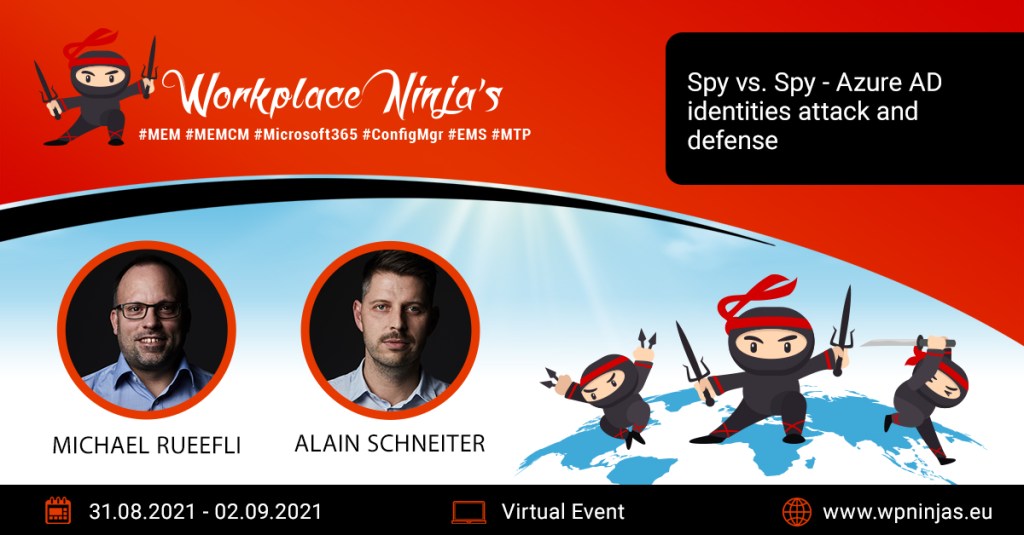
I’m excited to be chosen as a speaker at the Workplace Ninja Summit Virtual Edition 2021. The summit 2021 is again held all virtual, starting today. The event is an IT community conference focused on Endpoint Management, ConfigMgr, Intune, Microsoft Security, Azure AD, PowerShell and Azure Virtual Desktop, with Microsoft MVPs, Microsoft Regional Directors and other industry experts. Check out the event website.

OUR SESSION

I will speak together with my buddy Michael Rueefli (Azure MVP) about Azure AD identities attack and defense. Our session title and speaking slot is:

Spy vs. Spy – Azure AD identities attack and defense
– Session 2, 2PM, Room 2 –
Use this link to go to the whole session catalog: LINK

SOME WORDS ABOUT Workplace Ninja Virtual Edition 2021

The event is all virtual, as mentioned above. This year, it is the second time that Workplace Ninja Summit Virtual will be held “virtual”.

Community leaders started two years ago with the event. If you are interested in Microsoft cloud topics, this is a must event. You can join all sessions using Microsoft Teams and as it is a real community event, it’s free. However, it needs a lot of working hours to raise an event like that. So, thanks a lot to the organizers!

Community
You have the possibility to exchange and connect with other visitors and speakers of this event. Use this platform and the event as a virtual meeting zone and who knows… Possibly new synergies will arise. Would be cool to see you there, virtual!

Official hashtag used: #WPNinjS

So do not miss to check out the great speakers line-up.
See you there!