Azure AD Connect is a great tool to On-board your On-Premise Identities to the Azure Cloud. If you like to use a Hybrid Join of your Windows 10 Devices – Local Domain join & Azure AD join – you can configure Device Registration. What is the benefit if you enable this option?
- You can use Windows Hello for Business
- You can use Device-based conditional access
- You can use Enterprise roaming of settings
PREPARE
Since a few version back of Azure AD Connect it allows you to use the wizard to configure the necessary options for you. First of all, make sure you use the latest version of Azure AD Connect. You can also check the Auto-Upgrade Option of the engine by using the PowerShell command on the server where AAD Connect is installed:
Get-ADSyncAutoUpgrade
Further information can found here.
CONFIGURE AZURE AD CONNECT
Run Azure AD Connect – Configure – and select “Configure device options”

On the “Overview” page click Next.
On the “Connect to Azure” page enter your Global Admin credentials and click Next.
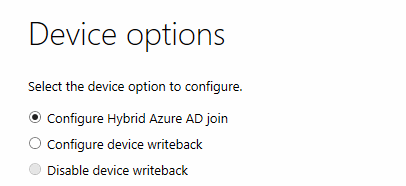
On the “Device options” page select “Configure Hybrid Azure AD Join” and click Next.
On the next step you will configure the Service Connection Point (SCP) to help your Windows 10 devices to find the necessary Azure Tenant information’s. To configure the SCP you need to provide Enterprise Admin Credentials. If you cannot provide this credentials during the wizard, you will be able to download the script to set the SCP in a later phase or offline.

This step helps you also to verify your current configuration. AAD Connect is checking the configured configuration on your AD. You can manually to that by browsing your ADSI Editor. Connect to the configuration naming context and then load the CN: “CN=ms-DS-Device-Registration-Service,CN=Schema,CN=Configuration,DC=xy,DC=xy”

Back to the wizard, provide the Enterprise Admin credentials and click “Next”.

Device Registration is also supported for Windows Downlevel Devices, like Windows 10 prior 1607 build, Windows 8.1, 8 & 7. For further information regarding downlevel devices visit the docs.microsoft.com page.

This will configure the Device Registration for a Hybrid Join. Click configure.

This will complete your On-Prem configuration for Device Registration.

POST CONFIGURATION TASKS
https://docs.microsoft.com/de-ch/azure/active-directory/connect/active-directory-azure-ad-connect-hybrid-azure-ad-join-post-config-tasks
Check out point 10 on the post tasks. You should create a GPO to make sure your devices getting Hybrid joined in Azure:
- Create a new GPO and Name it
- Computer Configuration > Policies > Administrative Templates > Windows Components > Device Registration
- Select : Register domain-joined computers as devices
- OK
- Link the policy to your Windows 10 Devices
 blog.alschneiter.com