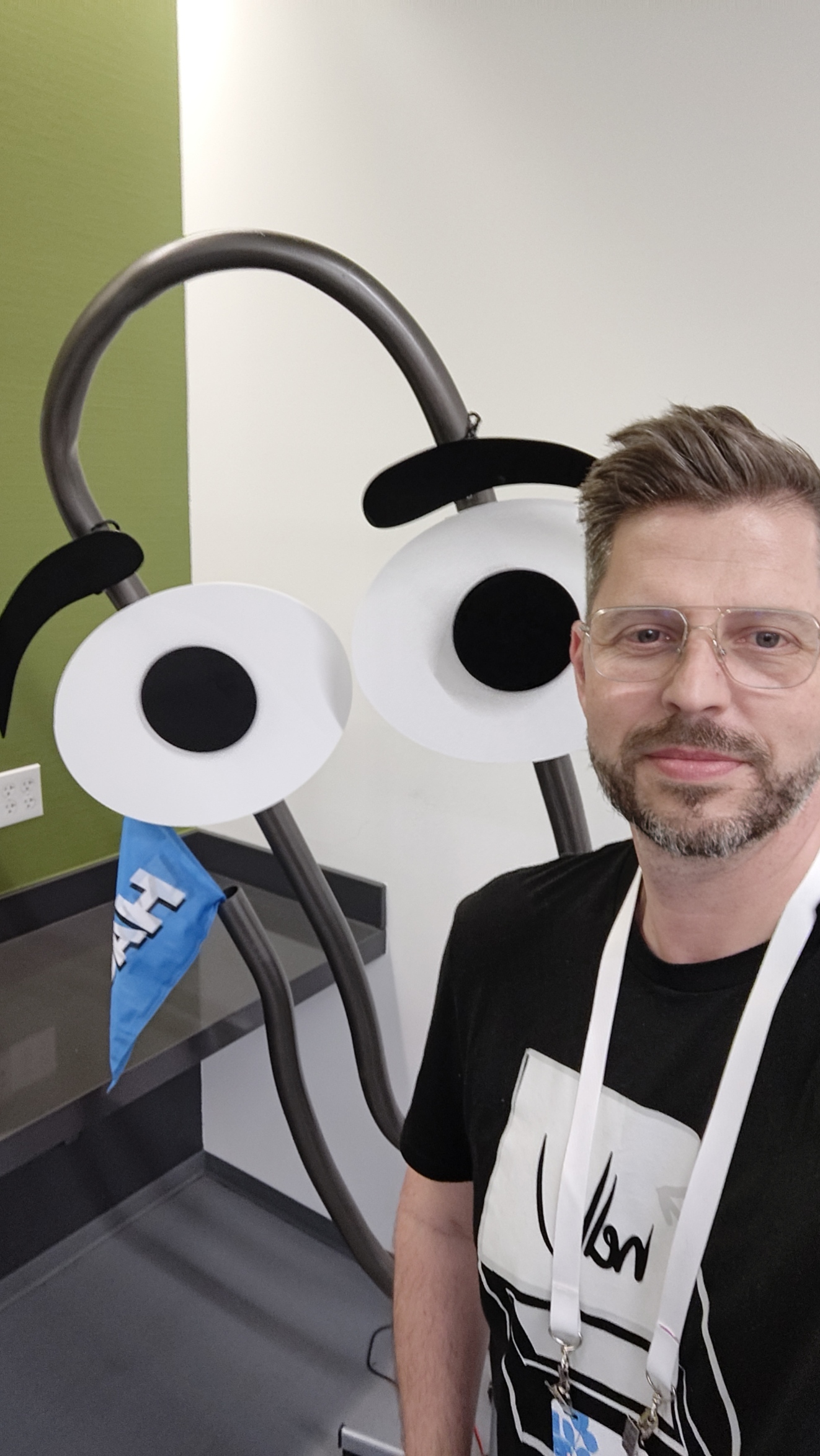
My Experience at the MVP Summit 2024

How I traveled from Switzerland to Seattle, learned about security, and had fun with fellow MVPs

Hello everyone, first: I’m not a travel blogger. Hovever, I’m excited to share with you my experience at the MVP Summit 2024, which took place in Seattle from March 11th to March 14th. It was an amazing opportunity to learn from Microsoft Product Group members, network with other MVPs and have some fun in the beautiful city of Seattle and surrounding. In this blog post, I’ll tell you how I traveled from Switzerland to Seattle, what I learned at the entire event, and how I enjoyed the fun part of the summit with some pictures.

Traveling from Switzerland to Seattle

I started my journey on Saturday, March 9th, from Zurich, where I boarded a flight to London. After a couple of hours hanging at the Terminal 5 at London Heathrow, I boarded a direct flight to Seattle. The flight was about 11 hours long, but I managed to get some sleep and watch some movies on the plane. I arrived in Seattle around 5pm and took a shuttle to the rental car area and drove to Bellevue to the hotel where I checked in and met some of the other MVPs who had arrived earlier. We decided to go for a drink and some dinner at Joe’s the very famous MVP bar down there.

Security Pre-Day

On Monday, March 11th, I attended the security pre-day at the Redmon campus, which was a full-day event dedicated to security topics, news to come and roadmap informations. I learned a lot from the discussions with the Product Groups, which covered topics such as Cloud security by Defender XDR, identity and access management, threat protection, and compliance. I also had the chance to interact with some of the Microsoft security experts and ask them questions about the latest security trends and challenges. I found the pre-day very informative and useful, as security is one of my main areas of interest and expertise as an MVP.

Summit Sessions

The summit sessions from Tuesday to Thursday were the highlight of the event for me, as they covered some of the most relevant and exciting topics for security professionals. I was especially interested in the sessions on MIcrosoft Defender XDR, Entra ID, Copilot for Security and Purview, which are some of the new and innovative solutions that Microsoft is offering to help customers protect their data and identities across different platforms and environments.

I also attended the keynote session, where I heard from some of the Microsoft leaders, such as Scott Guthrie, about the vision and direction of the company, and the latest innovations and trends in the industry with focus on AI. I also enjoyed the session from Mark Russinovich, who shared his top of mind content.

One of the highlights of the summit for me was meeting Alex Simons, the Corporate Vice President of Identity at Microsoft. He is one of the people that I admire and respect in the security field, and I was thrilled to have the opportunity to chat with him and ask him some questions. He also shared some of the upcoming features and improvements of Entra ID and as well on Active Directory, which I was very excited to hear about.

Another highlight of the summit for me was meeting Rob Lefferts, the Corporate Vice President of Threat Protection. He is another leader that I look up to and admire in the security field, and I was honored to have the chance to talk with him and other MVPs. He shared some of the challenges and opportunities that he faces in his role, and how he leads his team to deliver innovative and customer-centric solutions. He also gave us some sneak peeks of the upcoming features and enhancements of Defender XDR and Copilot for Security, which are some of the most advanced and comprehensive tools for threat detection and response.

Fun part

The fun part of the summit started already on Saturday when I met my fellows! I learned a lot from the speakers, who shared their insights and experiences on the latest technologies and solutions. I also had the opportunity to network with other MVPs from different regions and backgrounds, and exchange ideas and feedback. I made some new friends and contacts, and also met some of the MVPs that I had been following online for a long time.

The fun part included some social events and activities, such as the security welcome reception, the Adaptiva and the Patch-my party. These were great occasions to relax, have fun, and enjoy some food and drinks with the MVP community. I also took some time to explore Seattle and visit some of the attractions. I took some pictures of these places, which you can see below.

I hope you enjoyed reading about my experience at the MVP Summit 2024. It was a memorable and rewarding experience, and I’m very grateful to Microsoft and the MVP program for making it possible. I learned a lot, met some amazing people, and had a lot of fun. I’m looking forward to the next summit, and I hope to see you there.
CALL FOR SPEAKERS: MICROSOFT CLOUD SECURITY & MODERN WORK #16

Für das kommende Microsoft Cloud Security & Modern Work Meetup #16 am 30. März 2023 suchen wir noch Speakers! Neu könnt ihr euch via Sessionize bei uns melden und euere Session(s) eingeben. Wir suchen Speakers mit oder ohne Erfahrung, Microsoft MVPs oder Microsoft-affine Leute. Wenn es im März in Bern nicht klappt, dann vielleicht beim nächsten Event. Gib doch deine Session via Sessionize ein:
 https://sessionize.com/microsoft-cloud-security16/

Neuer Name, bewährtes Format
In den letzten drei Jahren haben wir insgesamt 15 Cloud Workplace Meetups durchgeführt. Seither hat sich nicht nur die Technologie verändert, sondern auch der inhaltliche Fokus unseres Formats. Dies spiegeln wir im neuen Namen “Microsoft Cloud Security & Modern Work” wieder. Wie bisher werden wir einen Mix aus Online-Meetings und Vor-Ort-Events anbieten – ab diesem Jahr auch verstärkt hybrid.
Aktuelle Events und Infos zum Microsoft Cloud Security & Modern Work Meetup findest du hier.

Folgende Events sind in diesem Jahr geplant:
30.03.2023 vor Ort in Bern & Hybrid
08.06.2023 vor Ort in Bern oder Zürich & Hybrid
22.08. Veranstaltungsort wird noch bekannt gegeben
12.10. Veranstaltungsort wird noch bekannt gegeben
21.11. Veranstaltungsort wird noch bekannt gegeben (Special zur Microsoft Ignite)

Jetzt anmelden!

SPEAKING AT WORKPLACE NINJA USER GROUP SWITZERLAND EDITION 2204

I’m excited to speak at the in-person event Workplace Ninja User Group Switzerland | Edition 2204 | #WPNinjaCH. The Usergroup event will be held this Friday April 1th in Zürich (Switzerland) at Digicomp. We drive the User Group since a while with the main focus on Endpoint Management, Microsoft Security, Identity and PowerShell. Check out the event website.

Delivering a session in front of “real” people changes a lot again. The nervousness rises a few days earlier than at a virtual event. You want to do it especially well and be well prepared. Not that you don’t do the same in a virtual session, but it’s different. Because of the pandemic, the event could no longer take place in person. Now we are of course super happy that this has changed (at least for this event).

MY SESSION

I will speak about Microsoft Information Protection and some more topics. Make sure to bring your use cases for MIP.

TITLE

Microsoft Information Protection – Getting started and keep an eye on your data! Session 1, 8:15 AM – yes, 8:15 AM

DESCRIPTION

“You started with Microsoft 365, great! A lot of your data now moved to the cloud, so what’s next? This session will show you how to get a good start on data protection using Microsoft Information Protection (MIP). Get the full overview of what Microsoft Information Protection is and how it can help protect our data at rest. Covering everything you need to know, to get started with data classification and how to use Sensitivity Labels on file and group levels to protect your data. And one of the most important: Know where your data is stored, even if data is travelling!”

MORE INFOS

We will cover those topics:

Hope to see you at the event!

EASY DETECT AND REMOVE AN APP USING PROACTIVE REMEDIATION IN ENDPOINT MANAGER

Often an app needs to be checked and/or uninstalled quickly or less quickly. This can be the case when a built-in app installs a component that is actually not wanted. I have made an example script here, which uses the Proactive Remediation of Endpoint Manager (MEM). I will not go into detail what MEM or Proactive Remediation is. Only, use Proactive Remediation :-)!

No matter if you use MEM or MEMCM, you will surely know the uninstall string of an app in the registry. I use this to query the details of the app. This has the advantage, if a version changes or is not 100% identical with the same parameters, that the remove still works.

So first I query the registry and search for the app in the uninstall keys. In this case I know that it was registered in the WOW6432Node. In this example it is about the “Intel Driver & Support Assistant”. As this software uses a new GUID for new versions, it make sense not to use the GUID as a parameter, only if you like to uninstall a specific version this maybe make sense.

DETECTION

Getting the app details. For sure you could use any property of the $appdtails to query. In my case I use the “InstallLocation” and the “DisplayName”

$appdetails = (Get-ItemProperty Registry::HKLM\SOFTWARE\WOW6432Node\Microsoft\Windows\CurrentVersion\Uninstall\*) | Where-Object {$_.InstallLocation -eq "C:\Program Files (x86)\Intel\Driver and Support Assistant\" -and $_.DisplayName -eq "Intel Driver && Support Assistant"}

In a second detection step you can check if the app is present or not. If not,
Exit 0 is used. If available exit 1 is used. Exit 1 forces the remediation.

try {
    if ($appdetails.DisplayName -eq "Intel Driver && Support Assistant"){
    Write-Output "Intel Driver & Support Assistant is installed and will now be removed"
    Exit 1
    }

    else {
    Write-Output "Intel Driver & Support Assistant is not installed. No action required"
    Exit 0
}
}

 catch{
    $errMsg = $_.exeption.essage
    Write-Output $errMsg
 }

REMEDIATION

Now lets go to the remediation. As soon as the detection script is terminated with exit 1, the remediation script is started.

First I start with a view parameters such as argumentlist. This details can also be found in the regkey or our variable $appdetails. Again, I check the app details:

param (

    [string]$msiname ="Intel Driver and Support Assistant Installer.msi",
    [string]$pathsw = $appdetails.InstallLocation,
    [string]$argumentlist = "/X" + $appdetails.PSChildName + " /qn" + " /noreboot",
    [string]$uninstallsource = $appdetails.InstallSource + $msiname

)
$appdetails = (Get-ItemProperty Registry::HKLM\SOFTWARE\WOW6432Node\Microsoft\Windows\CurrentVersion\Uninstall\*) | Where-Object {$_.InstallLocation -eq "C:\Program Files (x86)\Intel\Driver and Support Assistant\" -and $_.DisplayName -eq "Intel Driver && Support Assistant"}

Then I create a new region block with the remediation to uninstall the app. This is done with the start-process command.

#region Uninstalling Intel Driver & Support Assistant
try {
    if ($appdetails.DisplayName -eq "Intel Driver && Support Assistant") {
    Start-Process "msiexec.exe" -ArgumentList $argumentlist -Wait -NoNewWindow
    Write-Output "Intel Driver & Support Assistant removed"
    exit 0
    }

    else
    {
    Write-Output "Intel Driver & Support Assistant is not installed. No action required"
    exit 0
    }
} 
 catch{
    $errMsg = $_.exeption.essage
    Write-Output $errMsg
 }
 #endregion

PUTTING ALL TOGETHER

Save both scripts so that they can be imported into the MEM. Under endpoint.microsoft.comReports Proactive Remediation create a new script package and use the following properties:

Name: Detect and remediate Intel Driver & Support Assistant (or similar)
Settings: Detection script – select your saved detection script
Settings: Remediation script – select your saved remediation script
Run script in 64-bit PowerShell: Yes
Assignments: Select a group, all devices and/or filters (I love filters)
Schedule: I use “Hourly”, Repeats every hour

Deploy the package to your devices. As soon as the client has made an agent update via IME, the script packages will be executed and reports back to Endpoint Analytics.

To get more insights, use the “Columns” View. This will show you the Write-Output messages we have defined in the script earlier.

For example the Pre-remediation output message:

Let me know if this was helpful or leave a comment if you have any questions.

LIST OFFICE POLICIES (APP ADMIN CENTER) CONFIGURATIONS VIA API

Maybe you’re aware of the Office cloud policy service config.office.com where you can configure your Microsoft 365 Apps for Enterprise policies. If you select this strategy to configure the policies instead of using GPO’s, policies will be applied even on unmanaged devices. This is a huge benefit to combine the company security requirements and the flexibility to apply all configuration to any office apps and based on the user who is logged in to his office applications.

During rollouts, changes or even using an automated way for service providers, there is an API available but not pretty well documented (for not to say, not documented :-)). Let me know if you have any good links for that specific topic.

The first steps of all is to get the API backend URI and a Bearer token to authenticate with VS Code. Therefore you can use your browser in F12 mode or tools such as Fiddler Everywhere.

Browse to config.office.com within the new browser window and Sign in. Make sure that you have the proper permissions to use the App Admin Center. Required permissions:  Global Administrator, Security Administrator, or Office Apps Admin.

To get the Bearer token, use the F12 Dev Tools from Edge Chromium or any other browsers or Fiddler. Start the Dev Tools, select Network clear the history an make sure you’re recording the network session.

Go to Policy Management on config.office.com. In the network recording, Headers, you will now see the Name “policy” where also the Bearer token is listed under authorization.

Copy the token to PowerShell or to VSCode and create a variable such as $accesstoken:

#Insert token from Browser
$accesstoke = @"
Bearer Bearer token here
"@

Next, build your authHeather:

#Form request headers
$authHeader = @{
"Authorization"="$accesstoken"
"Content-Type" = "application/json"
}

Your $authheader will look like this:

From here, you can use the token to request your policies or also to create new policies, depending of your role of course. Get all your current policies by using the Invoke-RestMethod command. As you can see in the example bellow, the API URI is https://config.office.com/api

#Get all Policies
$uri = "https://config.office.com/api/OfficeSettings/policies/"
Invoke-RestMethod -Method GET -Uri $uri -Headers $authHeader

Result:

In the next post, I will show you ho to create or update a policy using the -POST Invoke-RestMethod