Microsoft Intune: Enable remote control for Android Devices using the TeamViewer connector

Today I played around with my Android device and Intune using the remote control option in Intune. The initial reason was, that my sister was calling me yesterday to help her out with her new Huawei Android phone. She tried to configure her Office365 account and was not able to do so. Of course, I helped her, but using remote control on the phone would be much cooler :-).

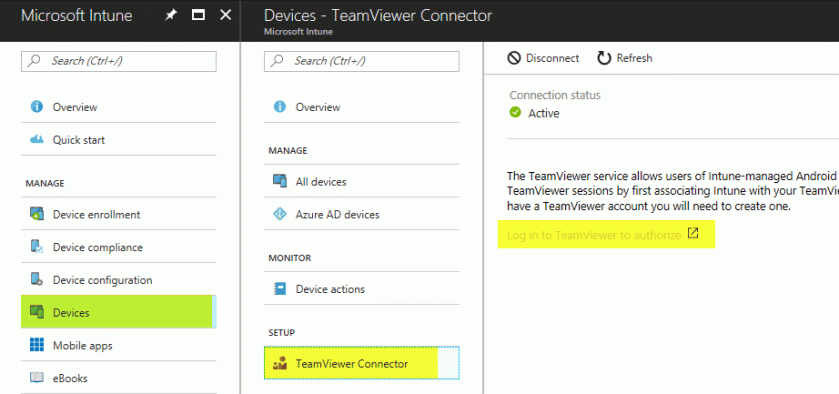
So I logged in to the Azure Portal, went to “Intune” and under Devices I found the Option “Setup” TeamViewer Connector.
2017-09-03 13_31_21-Microsoft Edge

Before you can use TeamViewer to remote control your devices, you have to create an account or use an existing one to authorize Intune with TeamViewer. Go through the sign-in page from TeamViewer and authorize Intune. Make sure that the Connection Status in the portal is set to “Active”. 

Don’t miss the message in the connector:
“The TeamViewer service allows users of Intune-managed Android devices to get remote assistance from their IT administrator. Create TeamViewer sessions by first associating Intune with your TeamViewer account and then authorizing it to work with Intune. If you don’t yet have a TeamViewer account you will need to create one. “

After that, It would probably make sense to deploy the Andoird TeamVewer Quick Support app to all Android Devices from your Company. This can be done by creating an app in the portal an assign it to the devices. This is not covered in this blog post.

2017-09-03 13_47_12-Microsoft Edge

How can you now initiate a remote session?

On your Windows 10 Desktop machine download and install (or just run) the latest version of TeamViewer. In my case it is TV 12. After that, sign-in to the application with the user account you created earlier in the post:

2017-09-03 13_50_44-Microsoft Edge

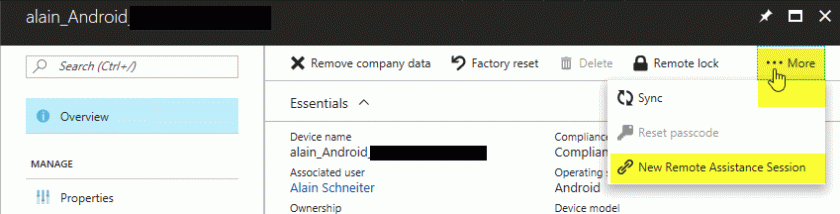
Go to the Intune Portal, select the device you like to remote control, go to Overview and there on the upper right hand you will find the three-dot option “…More”. Select “New Remote Assistance Session”.
2017-09-03 13_54_56-Microsoft Edge

This will initiate a new session to your Android Device. Click “Yes”.

2017-09-03 13_59_51-Dashboard - Microsoft Azure and 5 more pages -[InPrivate] ‎- Microsoft Edge

The user will have to go to the Company Portal and accept the request. The request is displayed in the notifications area of the Company Portal App.

2017-09-03 14_02_18-s14-162-233 - TeamViewer

TeamViewer Desktop creates a new category for you called “Intune” with all your remote control requests out from Intune. Just double click the invitation you recieved and from there you’re able to remote control the users device.

2017-09-03 14_04_17-Computers & Contacts

Be aware that the user will need to accept and confirm the session again. Now you can remote Control the Android device out from your TeamViewer Software. Very cool.
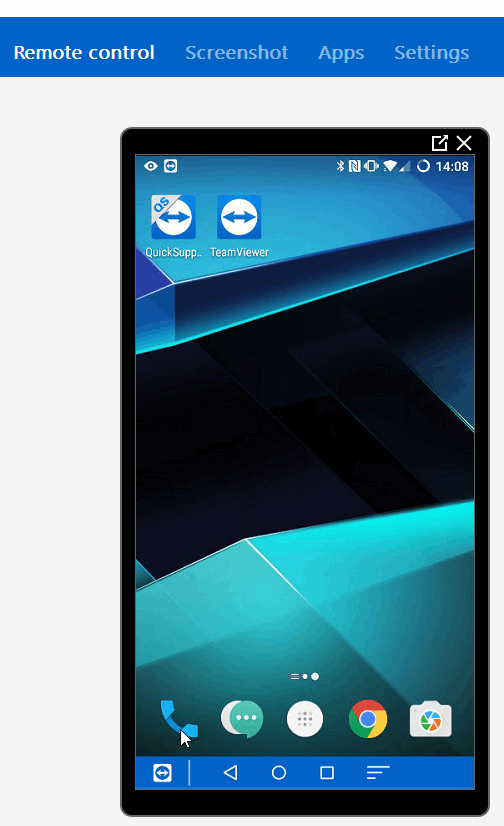
2017-09-03 14_08_22-s14-162-233 - TeamViewer

A great and nice option which should be used for remote supporting your android devices!

 

#ConfigMgr and Unknown Computer – SMSPXE.log displays a “Rejected” entry

Hi everybody!

Let’s talk about Unknown Computer Support in ConfigMgr Current Branch. I’m personally not a big fan of this feature, but some customer have a requirement to enable this option and that’s OK .

In one case we had to enable this because the customer missed to get a hardware list from his hardware vendor and was not able to do a bulk import of the devices to ConfigMgr. So we decided to build a service which is using PowerShell in a WIM to create a computer asset in the CMDB. The other reason to enable “Unknown Computer” support can be, the issue with DELL SMBIOS GUIDs.
If you boot some DELL devices (also new models like Latitude 7280), you receive a different SMBIOS GUID on the Screen of the Device compared to the one you get with WMI or in the SMSPXE.log of the Distribution Point. Here an example:

DELL Screen:
2017-07-05 21_38_52-20170705_124207.jpg ‎- Photos

SMSPXE.log
2017-07-05 21_39_27

This can be a reasons to enable Unknown Computer support. But I’m still not a fan of. Why? Normally when you PXE boot a Unknown Computer it will create a new entry in the Console called “Unknown”. To find all the current Unknown devices select the Devices and filter them by “Unknown”:

2017-07-05 21_31_19-srvitsm33vm - Remote Desktop Connection - __Remote

But not all devices are listet – for some reason and I couldn’t find out why. Reply to me if you have some information’s about.

If you now would like to boot the device again as Unknown, you won’t be able and the SMSPXE.log will show you a “Rejected” message for the specific SMBIOS GUID.

No advertisement found, No boot action, Rejected, Not serviced
 2017-07-05 21_43_34-Remote

You can do any queries to find the MAC or the SMBIOS GUID of the device in the Console (GUI), but you won’t find any entries.
To get that sorted, start the SQL Management Studio and navigate to your CM_SiteCode Database. There select “Tables” and scroll down to the table called dbo.LastPXEAdvertisement. You can right click the table and show the first 1000 entries. This will list you a few entries and hopefully your SMBIOS will be listet there.

Run the following query to get your SMBIOS GUID (for your own use, change the bold entries, DB name and GUID)

select * from [CM_ABC].[dbo].[LastPXEAdvertisement]
where
SMBIOS_GUID = ‘4C4C4544-0037-4E10-8047-B4C04F425331

To delete the PXE flag for the Unknown device run the following script:
Be careful with deleting entries from any databases. This is a workaround. Make sure you’re aware what you do!

delete from [CM_M01].[dbo].[LastPXEAdvertisement]
where
SMBIOS_GUID = ‘4C4C4544-0037-4E10-8047-B4C04F425331

This is how you will be able to boot the device again as Unknown Computer. Each PXE flag also get an Advertisement ID from your deployed Task Sequence. You can find this entry in the same table called LastPXEAdvertisementID.

Hope this helps.


Change BitLocker Drive encryption to XTS-AES 256 during OSD with #ConfigMgr

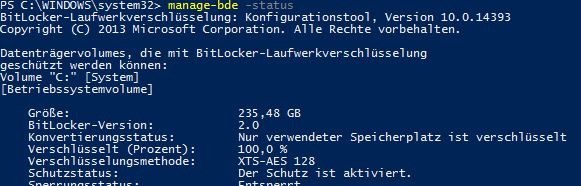
Windows 10 Current Branch (1607 & 1703) is using a default drive encryption of XTS-AES 128 if you encrypt the disk during OSD using ConfigMgr Current Branch.
001

Command above: manage-bde -status

Some customer maybe have the requirement to change the default to a different mode like XTS-AES 256.

This can be changed using a GPO or CIs in ConfigMgr but then you have first to decrypt the disk, assign the new policy and encrypt the disk again. This is annoying and not very user & admin friendly.

Since a while ConfigMgr is using an option called Pre-provision Bitlocker. This step in the TS is encrypting only the currently used diskspace. As it is in WinPE this is a very small part of the disk and also a quick step. But this step is using the command “manage-bde.exe  -on C: -used” and you are not able to change the encryption method.

Solution

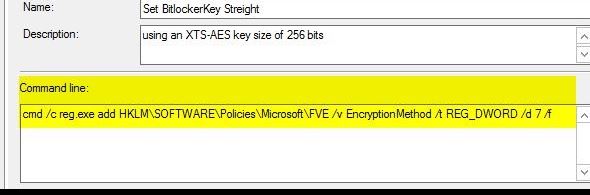
To change the method to XTS-AES 256 or a different method, use following registry key just before the Pre-provision BitLocker step:

cmd /c reg.exe add HKLM\SOFTWARE\Policies\Microsoft\FVE /v EncryptionMethod /t REG_DWORD /d 7 /f

The DWORD value 7 ist setting the method to XTS-AES 256. Use the list bellow to assign a different method:

Value 3, AES_128:
The volume has been fully or partially encrypted with the Advanced Encryption Standard (AES) algorithm, using an AES key size of 128 bits.

Value 4, AES_256
The volume has been fully or partially encrypted with the Advanced Encryption Standard (AES) algorithm, using an AES key size of 256 bits.

Value 6, XTS_AES128 *
The volume has been fully or partially encrypted with the Advanced Encryption Standard (AES) algorithm, using an XTS-AES key size of 128 bits. – This is the default of Windows PE 10.0.586.0 (1511 Release)

Value 7, XTS_AES256 *
The volume has been fully or partially encrypted with the Advanced Encryption Standard (AES) algorithm, using an XTS-AES key size of 256 bits.

* Only supported for deployments of Windows 10 images build version 1511 or higher

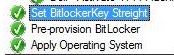
The Task Sequence step I used is a command line and is configured to run just before “Pre-provision” BitLocker:

004005

This has been testet with the Windows 10 Enterprise Builds 1607 (Anniversary) & 1703 (Creators).

Disable OneDrive in #Windows10 1607 and #Office365

I know, most of you (including me) using OneDrive or OneDrive for Business in your environment. But in some cases customers won’t allow users to save stuff on OneDrive or won’t let them connect to this service.

If you plan to disable OneDrive in Windows 10 1607 and Office365 Version 16 you have to consider two steps. Disabling it in the File Explorer of Windows 10 and the second point is preventing Office to offer for saving stuff to OneDrive.

All that can be done using a single group policy. Create a group policy and name it with your preferred naming convention. If you use the loop back mode you can use just one policy for computers and user settings.

First: Navigate to Computer Configuration\AdministrativeTemplates\Windows Componets\OneDrive\ and enable “Prevent the usage of OneDrive for file storage”. This will disable OneDrive in File Explorer and removes the cloud icon in the status bar of your Windows Clients.

1

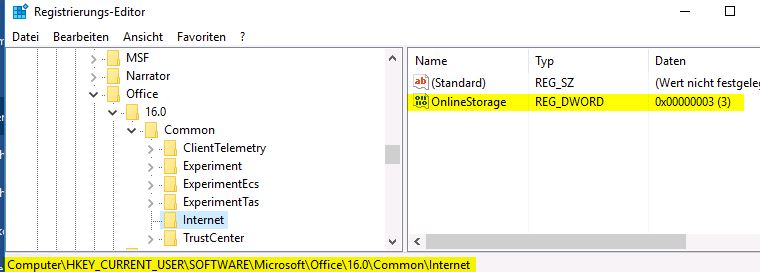
Second: Navigate to Users Configuration\Preferences\Windows Settings\Registry and add a new Registry item. Create a new key with the following settings:

Hive: HYEY_Current_User
Key path: Software\Microsoft\Office\16.0\Common\Internet
Value Name: OnlineStorage
Value Type: Reg_DWORD
Value: 3
Base: Decimal

2
3

This key disables the option to save files on additional Online Storage such as OneDrive. Of course you won’t be abele to use SharePoint Online as well. Assign the policy to your computers and test it.

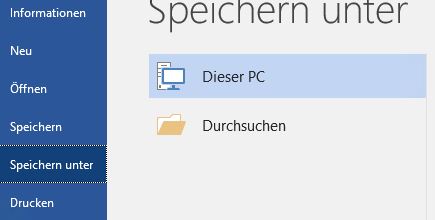
The result in the Office365 applications such as Word, Excel, PowerPoint, etc… is like that:

(Save as)
4

Thanks for the hint @ericatoelle on http://ericatoelle.com/2016/manage-save-as-locations-in-office-2016/

Let me know if you have any questions regarding this.


Still buggy: #ConfigMgr Current Branch 1610 – download still hangs in the console

I thought that some bugs will be fixed during the time. Ok, sometimes it happens with a new KB :-).

Today I had to upgrade a 2012 R2 ConfigMgr Server to 1606 and then 1610. 1606 is not an big deal as you have the baseline ISO for that. After that you will receive the 1610 in the console. But it hangs still with the status “Downloading”.

As one solution you will find to restart the SMS_Executive. But with restartig the service you won’t still be able to install the CB 1610. Restarting the SMS_Executive restarts also the SMS_DMP_Downloader and you can follow the process using the dmpdwonloader.log under the log folder from your Primary Site server.

In that log you recognize that some cab files can’t be downloaded. All sources will be downloaded to the CM “Program Files\Microsoft Configuration Manager\EasySetupPayload” folder. The log shows you the download link of the mssing root cab file and also the used proxy server. Copy that link to your preferred browser link bar and download the cab file. Place it in the EasySetupPayload folder. – Restart SMS_Executive. The download will continue after 1-2 minutes.

In my case was ConfigMgr not able to download all the prereq tools to the “redist” folder. Some where Ok, but not all. 14 tools where still missing. If you have the same issue, navigate to \EasySetupPayload\”extractedCABName”\SMSSETUP\BIN\x64 and run setupdl.exe to download all the Prereq tools. You can directly download the contet to the \EasySetupPayload\”extractedCABName”\redist folder.

Restart the SMS_Executive Service again. The Configuration Manager 1610 Update should now switch to the status Available.

configmgr

Have fun installing 1610.